Settings
Use the Settings page to configure the service user credentials for running tests and to set up email notifications. Open it by clicking the Settings icon in the Test Services navigator.
Setting up credentials for running tests
If no credentials are configured here, any logged-in user with the correct privileges can start tests. Configuring a service user allows tests to run under a fixed account regardless of who triggers them.
-
Click the Settings icon in the navigator.
-
Under Credential Settings, configure credentials for each test type:
Ad-hoc tests
Select the credentials for user-initiated tests.
- Always use the following credentials for running user-initiated tests — when selected, all user-initiated tests run under the credentials you enter here. When not selected, tests run under the credentials of the currently logged-in user.
Scheduled tests
Select the credentials for scheduled tests.
- Always use the following credentials for running scheduled tests — when selected, all scheduled tests run under the credentials you enter here. When not selected, tests run under the credentials of the user who created or last modified the schedule.
-
Scroll to the bottom of the Settings page and click Save.
Setting up email notifications
Test Services can send email summary reports when tests are executed. Email is sent using OpenLab Shared Services.
The email server must be configured in the OpenLab Control Panel before notifications can be set up. If email is not configured there, an error message appears and the notification fields cannot be saved. See the OpenLab Control Panel help for setup instructions.
-
Click the Settings icon in the navigator.
-
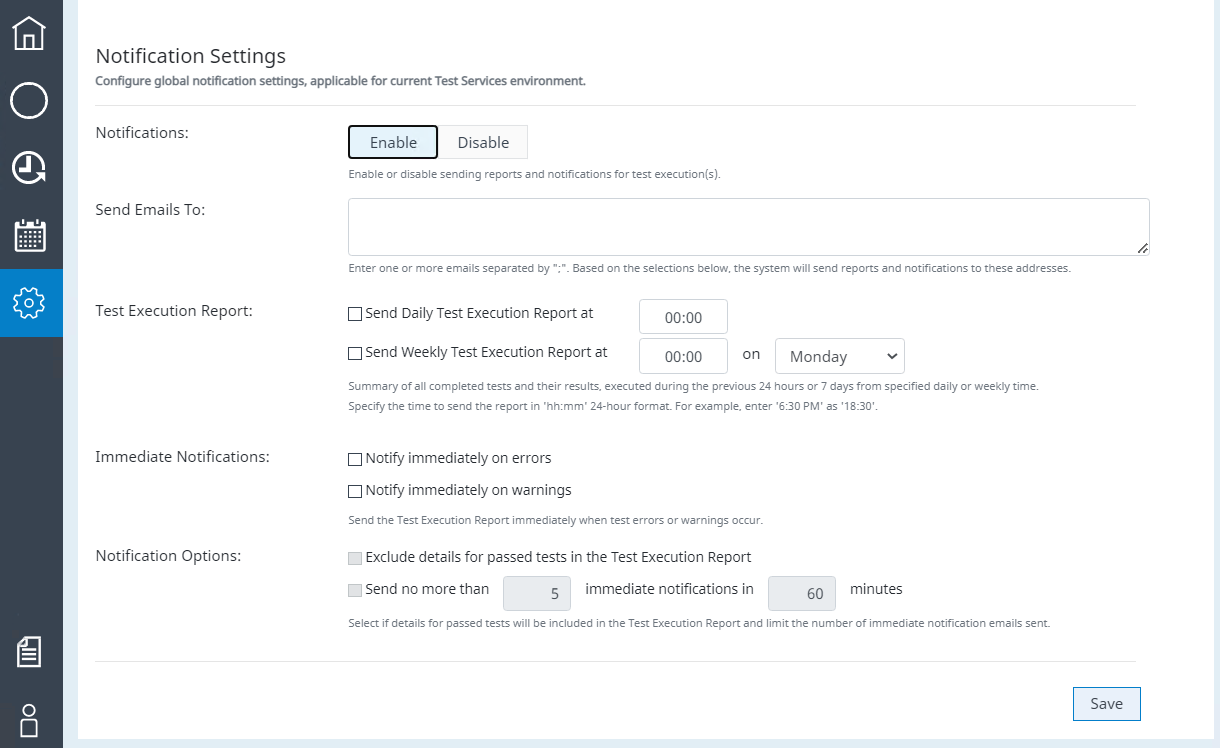
Scroll down to Notification Settings. Notifications are disabled by default.
-
Click Enable to activate the notification fields.
-
In Send Emails To, type one or more email addresses separated by semicolons.
-
Under Test Execution Report, select one or both options:
- Send Daily Test Execution Report — sends a daily report of all tests executed the previous day (results through midnight).
- Send Weekly Test Execution Report — sends a weekly summary of all tests executed the previous week (ending Sunday).
-
Under Immediate Notifications, select one or both options:
- Notify immediately on errors — sends an email whenever an error is reported.
- Notify immediately on warnings — sends an email whenever a warning is reported.
-
Under Notification Options, configure additional settings:
- Exclude details for passed tests in the Execution Report — include only details from failed tests.
- Send no more than — limit the number of immediate notifications to a set count within a specified number of minutes.
-
Click Save.
Disabling notifications
- Click the Settings icon in the navigator.
- Under Notification Settings, click Disable.
- Click Save.
Re-enabling notifications
- Click the Settings icon in the navigator.
- Under Notification Settings, click Enable. The notification fields become active, allowing you to review or edit the existing settings.
- Click Save.
Notification emails
Notification emails are sent to the addresses configured in Send Emails To. Each email includes a summary of tests performed during the notification period and links to the individual reports.
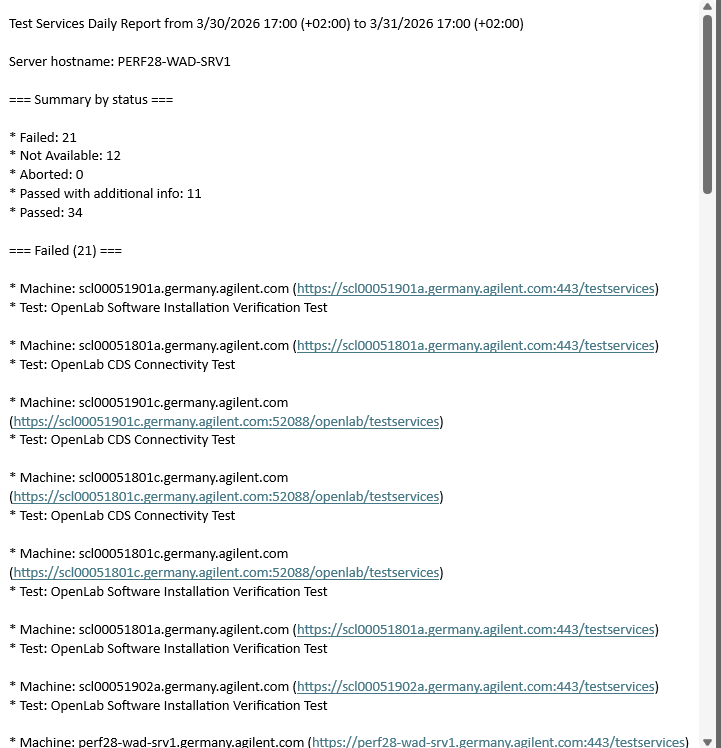
If necessary, log in to the machine where Test Services is installed to view the linked reports.