Running Tests
Test Services only enables a test when its minimum prerequisites are met. For example, the Software Installation Verification Test is disabled if the Software Verification Tool (installed with OpenLab CDS) is not present on the system. If plug-ins are installed, those tests appear under Available Tests.
Starting tests
-
On the home page, select the checkboxes for the tests you want to run (Figure 2). To select all tests at once, click the checkbox next to Name.
noteYou can select tests and start execution only when the System Status is Ready. If the status is Running or Aborting, wait for the current execution to finish.
-
Click Start.
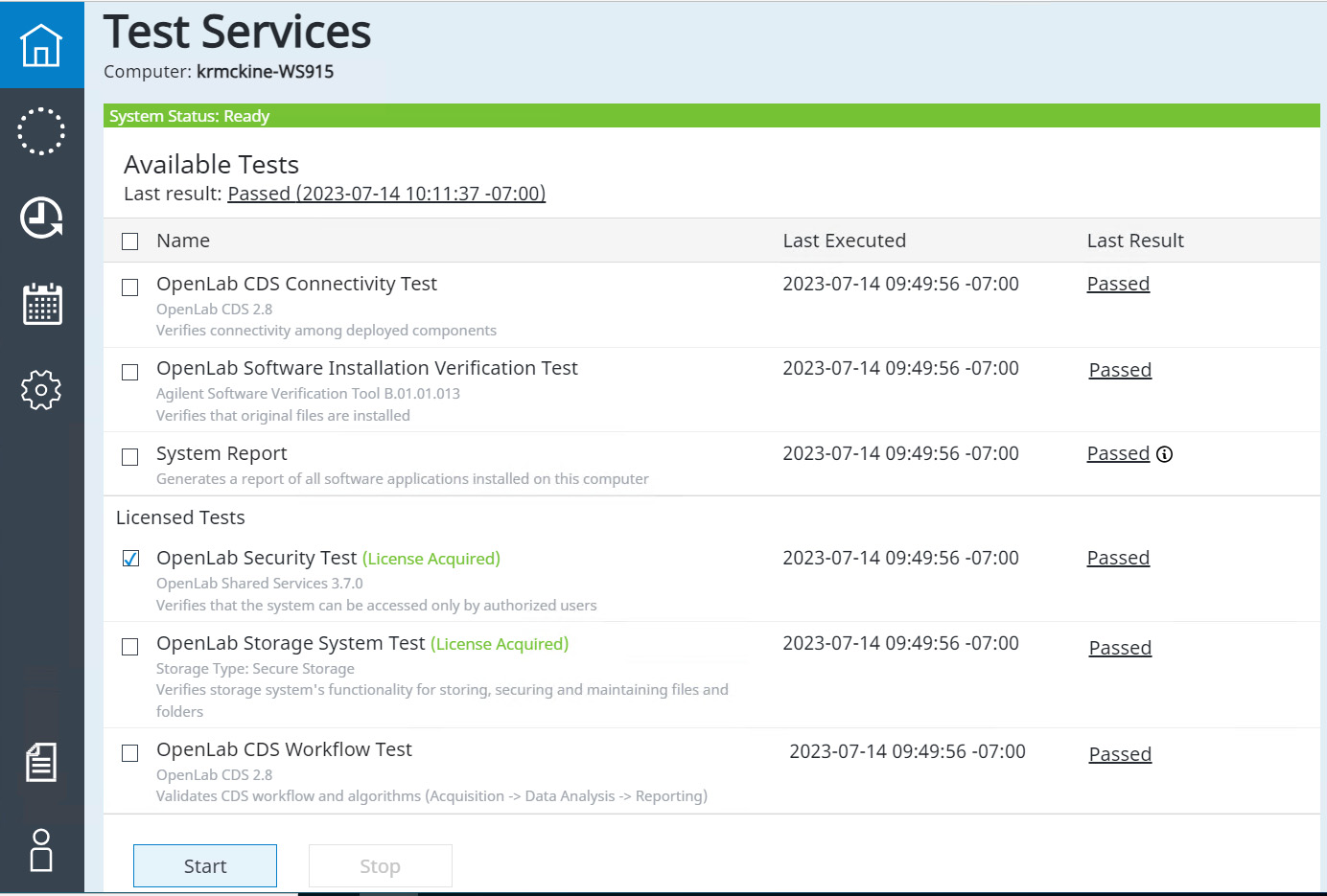
When a test starts, the system status at the top of the home page changes to Running, along with the number of tests queued for execution.
noteA "Passed with additional information" icon appears when a test passed but there is additional information to review in the report.
-
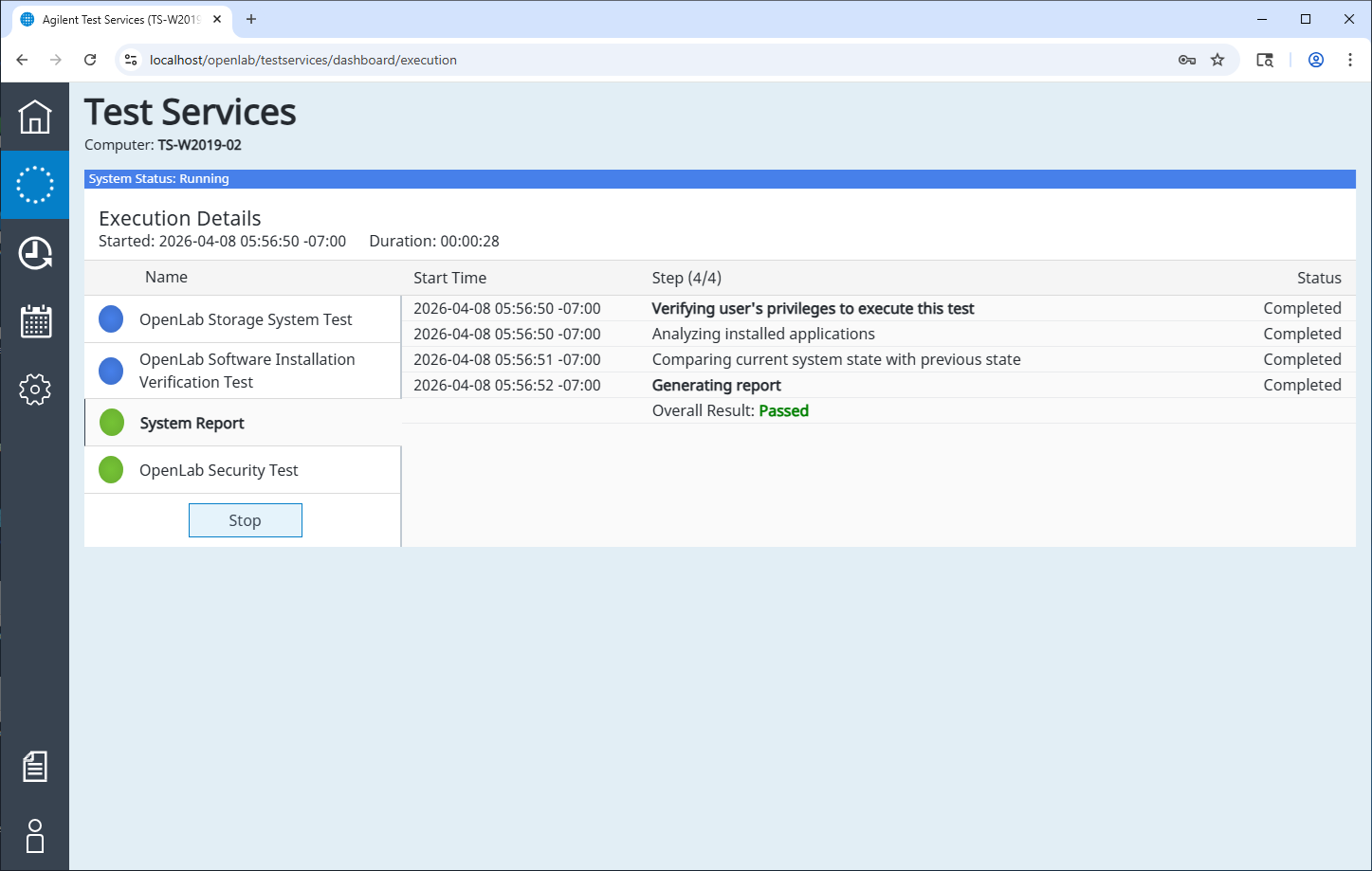
To monitor progress, open the Execution Details page.
-
Click a test in the list to see its individual status: Pending, In Progress, Completed, or Aborting.
-
To stop all running tests, click Stop.
Available tests
The tests available on a given machine depend on the deployment type (Workstation, Workstation Plus, Server/ECM XT, Client, or AIC) and which plug-ins and licenses are installed. See the Available Tests Matrix for a full breakdown.
Select a test below for detailed prerequisites, configuration steps, and what the test verifies:
- Software Installation Verification Test
- System Report
- OpenLab Security Test (license required)
- OpenLab Storage System Test (license required)
- OpenLab CDS Workflow Test (license required)
- OpenLab CDS Connectivity Test