Reviewing Reports
When a test execution completes, results are available from the home page or the Execution History page.
Access reports from the home page
Click the Last result link displayed under Available Tests to open a list of all reports from the most recent test execution, including the Summary report.
For example: Last result: Passed (2018-10-05 11:39:58 +02:00)
- Clicking the top-level Last result link shows all reports from the last execution — for example, the Security Test Report, System Report, and Summary Report if both tests were run together.
- Clicking the Last Result link for a specific test shows only the reports generated by that test (no Summary Report).
Access reports from the Execution History page
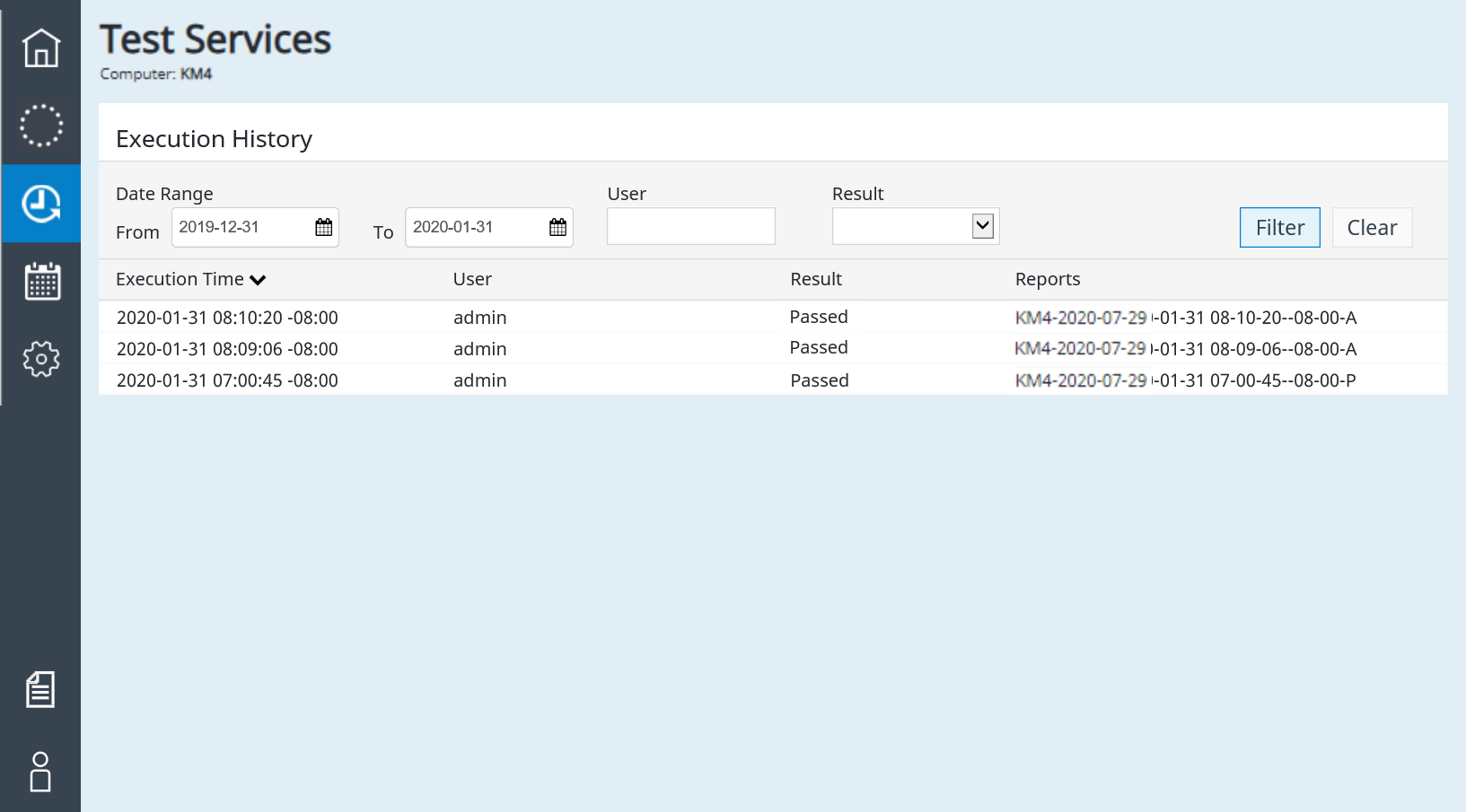
The Execution History page lists all past test executions with the following columns:
- Date and time of execution
- User who executed the test
- Result (Passed, Failed, Aborted)
- Location in Secure Storage or OpenLab ECM where the reports are stored
For file-based workstations, the user who executed the test is not displayed.
Filtering results
- Under Date Range, select From and To dates. By default, all statuses from all users for the last month are shown.
- Under User, type a user name to filter by that user. (Not available for file-based workstations.)
- Under Result, select Passed, Failed, Aborted, or All.
- Click Filter to apply the selected criteria.
- Click Clear to reset the filter to its default.
Viewing and downloading reports
-
In the list of executed tests, click a test to display the available reports (Figure 5).
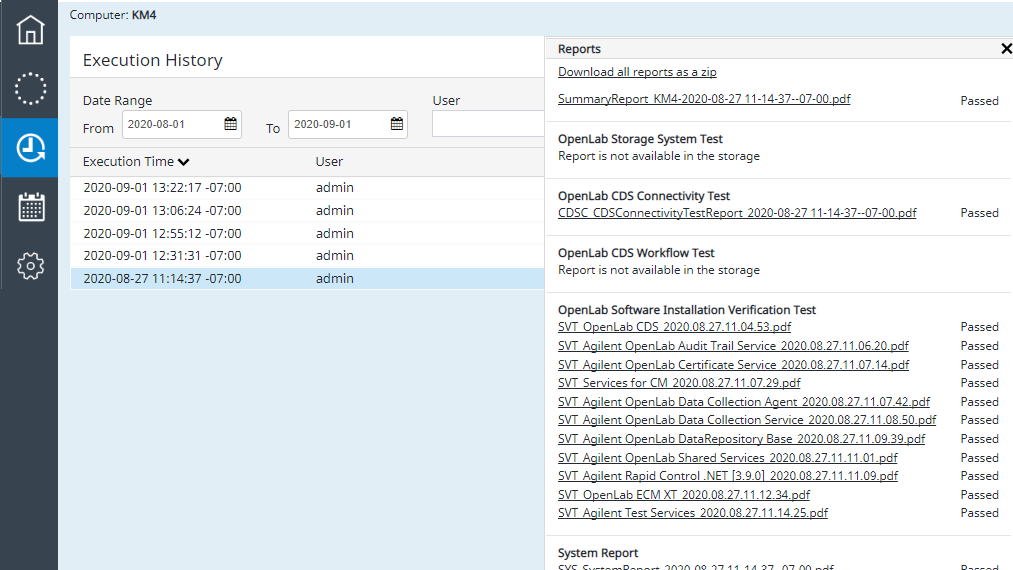
The available reports are listed alongside the test result (Passed, Failed, Aborted).
-
To download all reports at once, click the Download all reports as a zip link at the top. The zip file contains all reports from the selected execution, including the Summary report.
-
To view a single report, click the report name. The report downloads to your local machine where you can open and view it.
Report types
For a description of what each report contains, see Report Contents.