View test execution history
Review the past verification runs on a machine. The execution history lists every run performed on the machine you open it from, with its time, the user who ran it, and the overall result, and lets you open the reports for any run.
Prerequisites
- You must have a Test Services role that allows you to view history and download reports.
- At least one verification run must have finished on this machine.
Open the execution history
The execution history is reached from the home page and opens showing recent runs.
-
On the home page, open the execution history.
The page lists past runs for this machine. By default it shows runs from all users for the last month.
-
Read the columns for each run:
- Execution Time. The date and time the run started.
- User. The account that ran the tests. (On a file-based workstation, no user is shown.)
- Result. The overall result: Passed, Failed, or Aborted.
- Reports. The report folder for the run; click the row to open and download its reports.
Newer runs appear first.
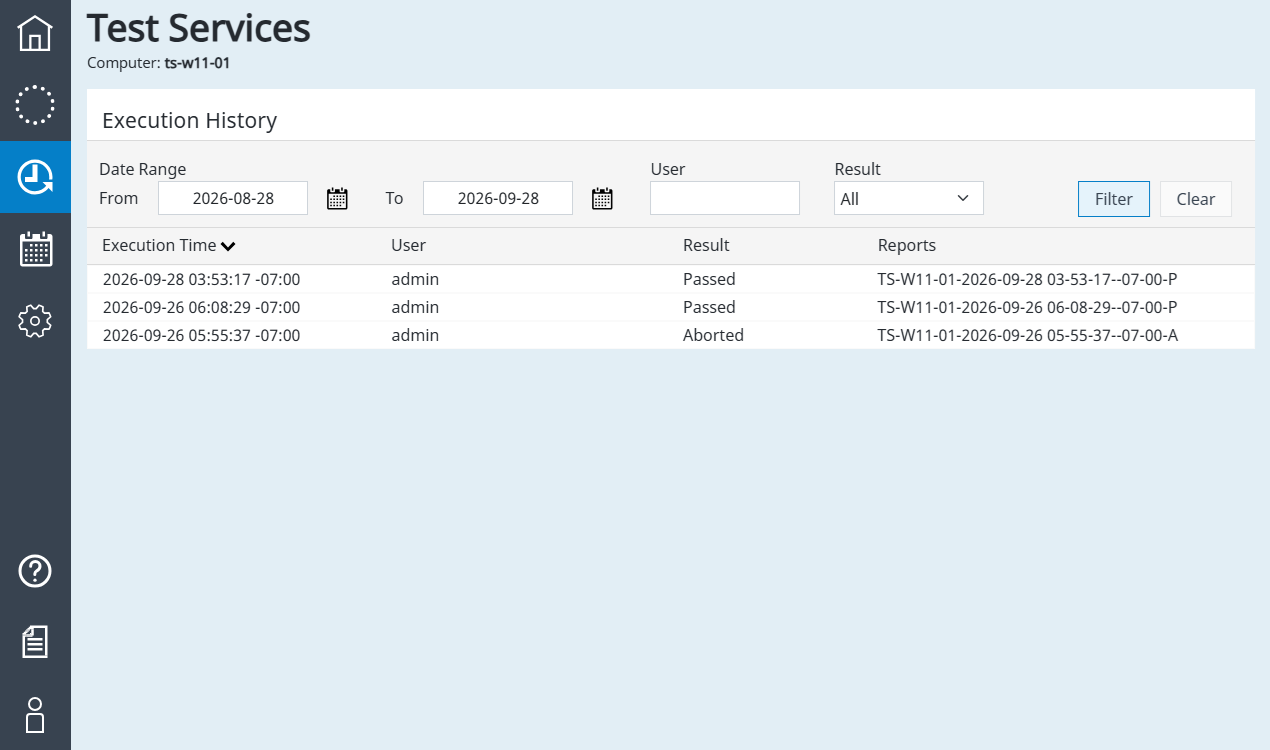
The history shows runs whose results are still in the Test Services Results folder. Results that were moved or archived elsewhere are not listed.
Filter the history
Narrow the list to the runs you want by date, user, and result.
-
Under the date range, select a From date and a To date.
-
To limit the list to one account, enter a user name in the User field. (Not available on a file-based workstation.)
-
To limit the list to one outcome, select Passed, Failed, Aborted, or All in the Result field.
-
Click Filter.
The list updates to show only the runs that match.
-
To return to the default view, click Clear.
The filter resets to all users and all results for the last month.
Open the reports for a run
Each run in the history links to its reports.
-
Click the row for the run you want.
A panel opens listing the Summary report and every test report from that run.
-
Download the reports you need.
For the steps to download a single report or all of them, see Review the test Summary report.
See also
- Review the test Summary report: open and download the report for a run.
- Run verification tests: start a run that is recorded in the history.
- Test result statuses: what each result value means.
- Test result locations: where Test Services stores run results.
Last updated: