Run verification tests
Run one or more verification tests against the current OpenLab CDS machine and watch the run to completion. Test Services lists the tests available on the machine you open it from, runs your selected tests, and produces a Summary report for the whole run.
Prerequisites
- You must have a Test Services role that allows you to run tests. (See Roles and privileges.)
- The machine must have OpenLab CDS installed and be running normally.
- The System Status at the top of the home page must read Ready. (If it reads Running or Aborting, wait for the current run to finish.)
Select the tests to run
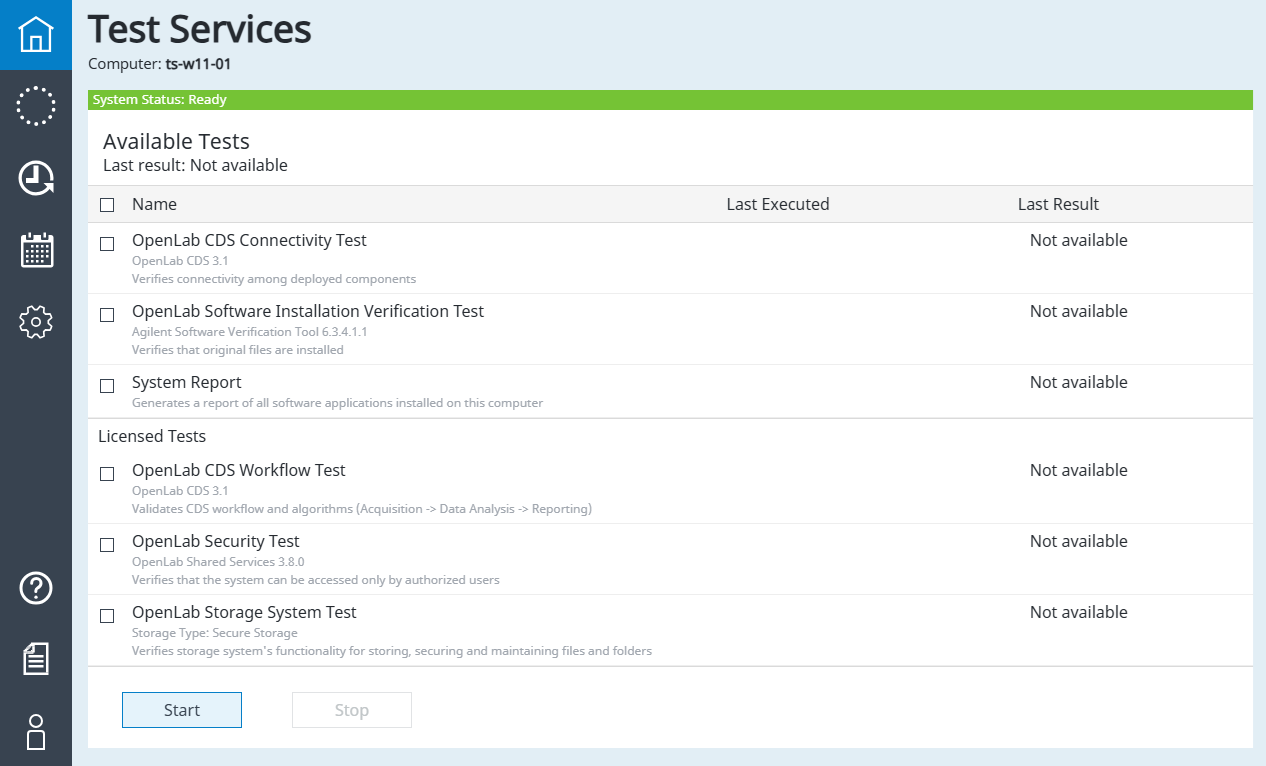
The home page lists the tests available on this machine. By default it shows only the tests recommended for the machine type. A test is enabled only when its prerequisites are met, so a test with an unmet prerequisite appears disabled.
-
Log in to Test Services (see Log in to Test Services).
-
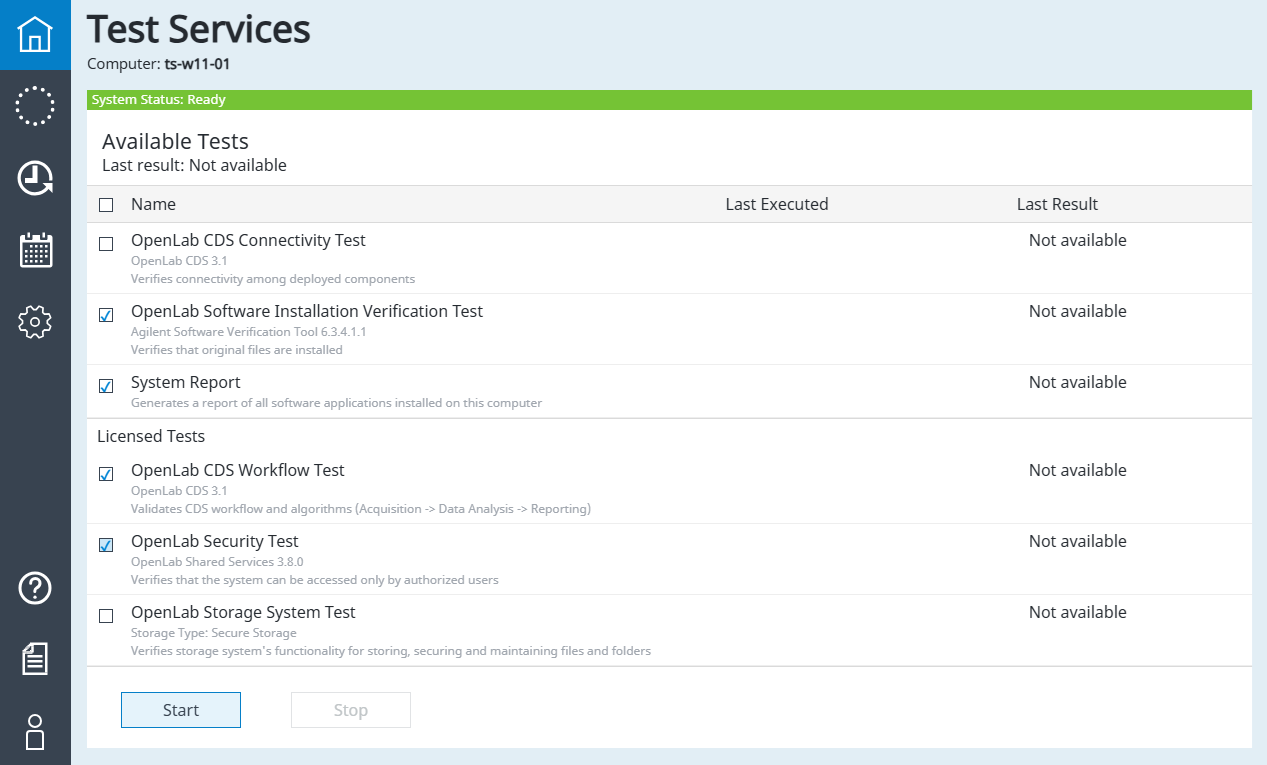
On the home page, select the checkbox next to each test you want to run.
To select every visible test at once, select the checkbox next to Name. This selects only the tests currently shown and skips any that cannot run on this machine.
-
To run a test that is not recommended for this machine, select Click here to show all tests, then select the test.
Licensed tests appear under Licensed Tests. For where each test runs, see System types and recommended tests.
Some tests have configurable parameters. If a test shows a Configure option, select it to set the parameters before you start the run.
Start the run
Start all selected tests together from the home page.
-
Click Start.
The System Status changes to Running and shows the number of tests queued. Test Services runs the selected tests, some in parallel where allowed.
-
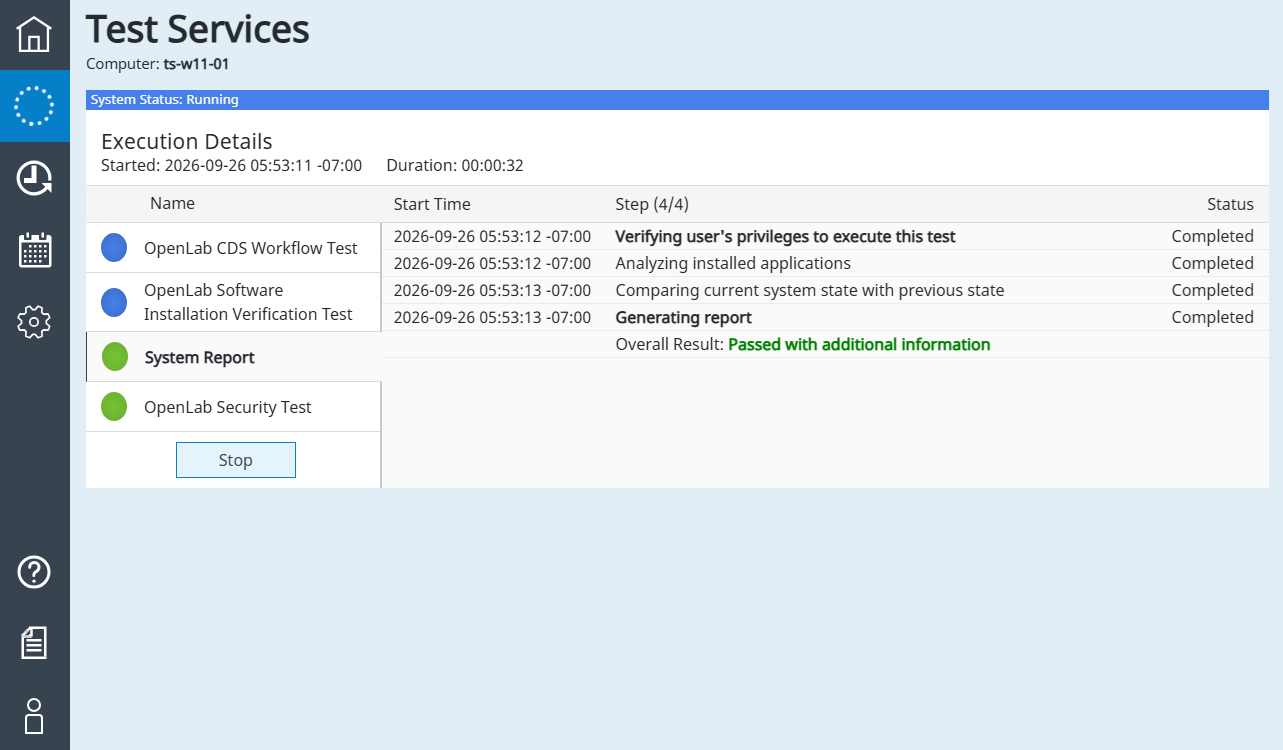
To monitor the run, open the Execution Details page.
Each test shows its own status: Pending, Running, Completed, or Aborting. The progress of each test is shown as a step counter and a duration that updates while the run continues.
-
Wait for the run to finish.
When every test ends, the System Status returns to Ready and the overall result appears. The test selection checkboxes are then cleared.
To stop a run before it finishes, see Abort a running test.
Review the result
After the run finishes, each test shows its own result and the time it last ran.
-
Read the result next to each test: Passed, Failed, or Not available.
A passed test may also show an information icon, meaning it passed but the report contains additional information to review.
-
Next to Last result, click the result link to open the reports panel and download the Summary report.
For what each value means, see Test result statuses.
See also
- Getting started with Test Services: run your first verification from end to end.
- Review the test Summary report: open and download the report for a run.
- Abort a running test: stop a run that is in progress.
- Available tests: every test and where it runs.
- Schedule tests: run verifications automatically.
- About a verification run: how a run is structured.
Last updated: