Review the test Summary report
Open and download the Summary report for a verification run. The Summary report states the overall result for the whole run and links to each test's individual report. You can reach it from the home page for the most recent run, or from the execution history for any past run.
Prerequisites
- You must have a Test Services role that allows you to download reports.
- A verification run must have finished on this machine. (See Run verification tests.)
Open reports for the most recent run
The home page keeps a link to the result of the last run on this machine.
-
On the home page, find Last result in the Available Tests header.
It shows the overall result and the date and time of the last run, for example Passed followed by the run time.
-
Click the Last result link.
A panel opens on the side of the page, listing the Summary report and every test report from that run, each with its result and a download option.
-
To open reports for a single test instead, click the Last result link next to that test.
The panel then lists only that test's reports, without the Summary report.
Open reports for a past run
Use the execution history to reach the reports for any earlier run.
-
Open the execution history.
-
Click the row for the run you want.
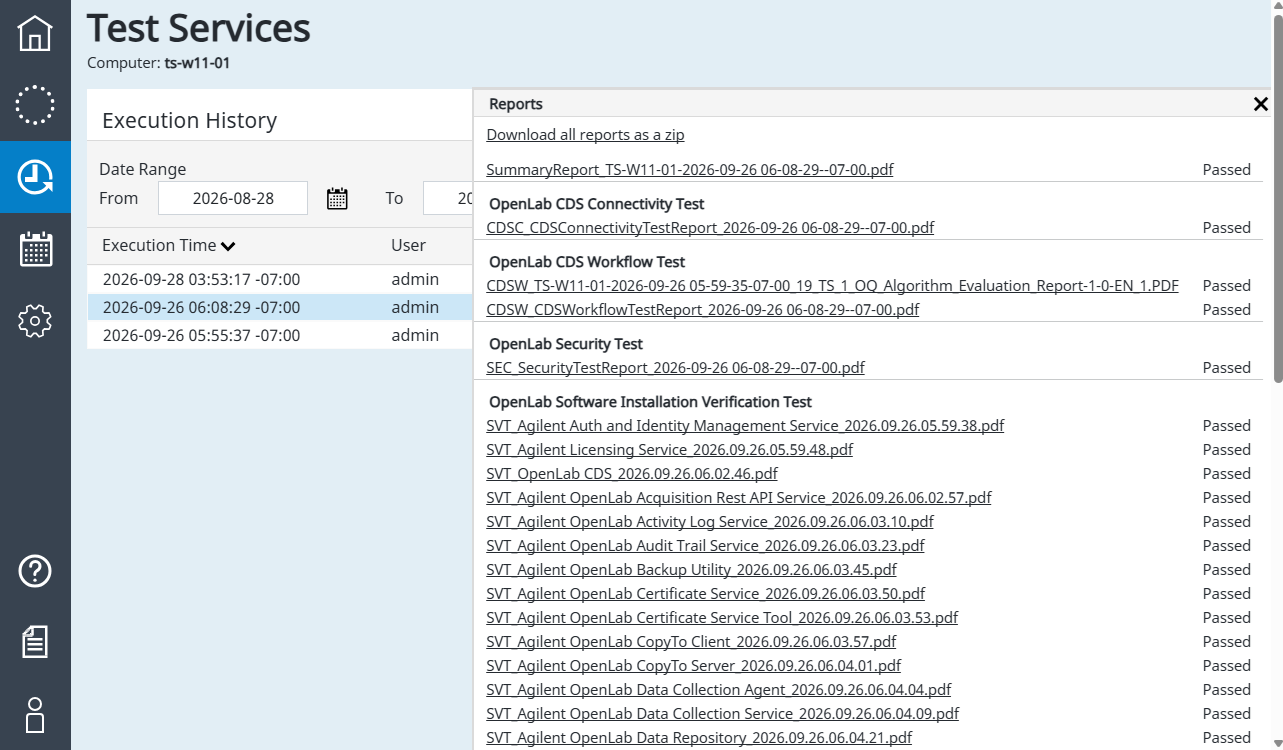
A panel opens listing the Summary report and every report from that run.
Download a report
You can download a single report or every report from the run at once.
-
To download one report, click the report name.
The report downloads to your machine, where you can open and read it.
-
To download every report from the run, open Execution History, select the run, and click Download all reports as a zip in its reports panel.
The zip file contains all reports for the run, including the Summary report.
A test that started and then failed or was aborted without producing a report still appears in the panel; in place of a downloadable report name it shows "Report is not available in the storage," so you can see that the test ran. Tests that never started before an abort are omitted from the panel and Summary report.
See also
- About the Summary report: what the report contains and how the overall result is decided.
- Test report contents: the fields and sections in each report.
- View test execution history: find and filter past runs.
- Run verification tests: start a run that produces a report.
- Test result statuses: what each result value means.
Last updated: