Set up email notifications
Configure Test Services to email a summary of test results to one or more recipients. This page is for Test Services administrators who want to keep their lab informed of test outcomes without checking the application. Notifications cover every test run on a machine, both manual and scheduled.
Prerequisites
- You must have the Test Services Administrator role. (The notification settings are read-only for the Test Services User role.)
- The email server must be configured in OpenLab Control Panel. (Test Services sends mail through OpenLab Shared Services and cannot enable notifications until the email server is set.)
- You need the email addresses of everyone who should receive the reports.
Notifications are disabled by default. The settings you save are shared with every Test Services instance connected to the same server.
Enable notifications
You turn notifications on, add recipients, and choose which reports to send from the Settings page.
-
Click the Settings icon in the navigator.
-
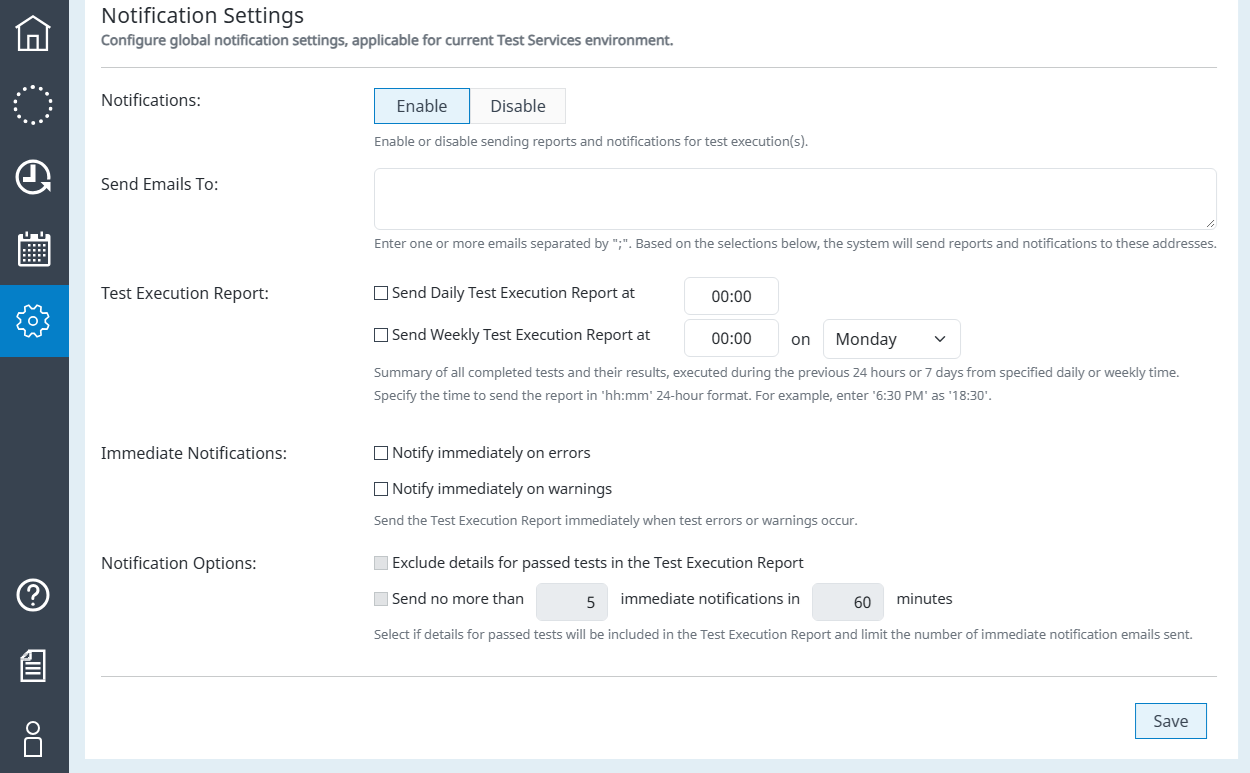
Under Notification Settings, click Enable.
The notification fields become active.
-
In Send Emails To, enter one or more recipient addresses, separated by semicolons.
-
Select the reports to send (see Choose which reports to send).
-
Scroll to the bottom of the Settings page and click Save.
If the email server is not configured in OpenLab Control Panel, an error appears and the notification fields cannot be saved. Set the email server in OpenLab Control Panel first, then return to this page.
Choose which reports to send
Test Services sends two kinds of report: periodic summaries on a fixed cadence, and immediate alerts when a test reports an error or a warning. Select any combination that suits your lab.
- Send Daily Test Execution Report covers all tests run in the previous day.
- Send Weekly Test Execution Report covers all tests run in the previous week.
- Notify immediately on errors emails recipients when a test reports an error.
- Notify immediately on warnings emails recipients when a test reports a warning.
For the daily and weekly reports, you also set when they are sent. Enter the send time next to each report in 24-hour hh:mm format (for example, enter 6:30 PM as 18:30), and choose the day of the week for the weekly report.
Under Notification Options, you can refine the content and volume:
- Exclude details for passed tests keeps passed tests in the subject line and the summary count table but leaves their detail rows out of the email.
- Send no more than limits the number of immediate notifications sent within a set number of minutes.
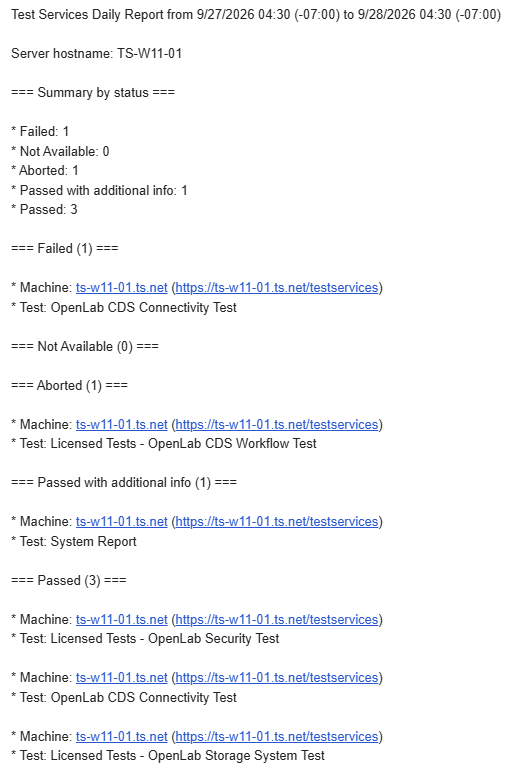
Each report email lists the tests run during the period, grouped by result status and machine. Machine links open the Test Services login page for that machine. After you log in, open Execution History to view and download the reports for a run. The email does not link directly to individual Summary reports.
Send a test email
Send a test email to confirm that Test Services can reach the email server before you rely on scheduled reports. Test Services has no test-email button; instead, you open a health-check URL in a browser. This sends an email using the saved notification settings and the SMTP configuration from OpenLab Control Panel.
-
Make sure email notifications are enabled and saved (see Enable notifications).
-
In a browser, go to
https://<server:port>/openlab/testservicesserver/v1/health/email, replacing<server:port>with the address of the machine that hosts Test Services Central Management.For client/server systems, use the address of OpenLab Server (or the OLSS server for an ECM 3.x backend). You can open this server-hosted URL from a Client or AIC as long as that machine can connect to the server. For a Workstation or Workstation Plus, use the local machine — for example,
https://localhost:52088/openlab/testservicesserver/v1/health/email.Test Services sends a message with the subject "Test Services Test e-mail" to the configured recipients.
Central Management sends the test email and runs only on Server, Workstation, and Workstation Plus systems. A Client or AIC does not send the email itself, but you can use its browser to invoke the endpoint on the central server. Do not use localhost in the URL from a Client or AIC.
If the test email does not arrive, see Email notifications are not working.
Disable notifications
Disabling notifications stops all report emails while keeping your recipients and report choices for later.
-
Click the Settings icon in the navigator.
-
Under Notification Settings, click Disable.
-
Scroll to the bottom of the Settings page and click Save.
To resume, click Enable and then Save. Your previous settings are restored.
See also
- Set up credentials for running tests: configure the service account on the same Settings page.
- Schedule tests: automate the runs that notifications report on.
- Review the Summary report: open the report after following a machine link in a notification email.
- Email notifications are not working: diagnose missing or delayed emails.
- Roles and privileges: the administrator role required to change notification settings.
Last updated: